Getting Started
This sections covers all the basics you need to get started with using Color-Chan!
Inviting Color-Chan
First, you need to invite Color-Chan to your server. You can do this by clicking on the invite link Color-Chan website or by clicking on the button bellow.
Move Color-Chan's role
After inviting Color-Chan, it's important to move Color-Chan's role directly below your moderator and/or administrator roles. This ensures that the colors of the color roles are applied correctly because of Discord's role hierarchy system.
Adding color roles
Now we are ready to start adding color roles! The easiest way to add color roles is by using one of our default color lists. You can add a default color list by using the /add default colors command.
You can do this by using the /add rgb color or /add hex color. These commands require you to provide either RGB values or a HEX code for the color you want to add. You can get color codes from various online color pickers, such as HTML Color Picker.
Viewing the color list
You can now view your color list with /color list! This command will display the full list of colors that have been added to your server.
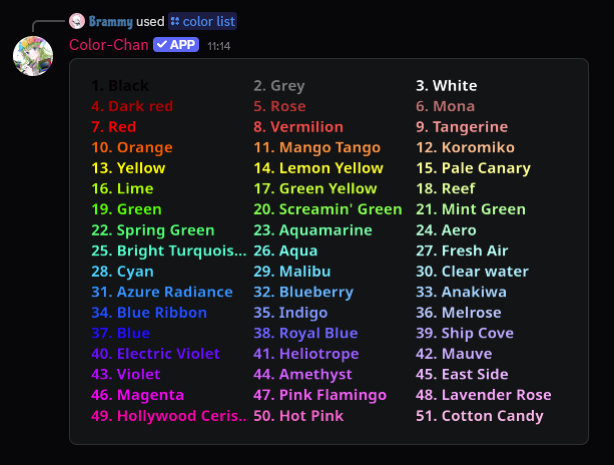
Example output of the /color list command
Creating reaction lists
You can also create reaction color lists that allow users to self-assign color roles by clicking on a button.
You can either add all the available colors to reaction lists with /add reaction colors or you can add specific colors with /add reaction color.
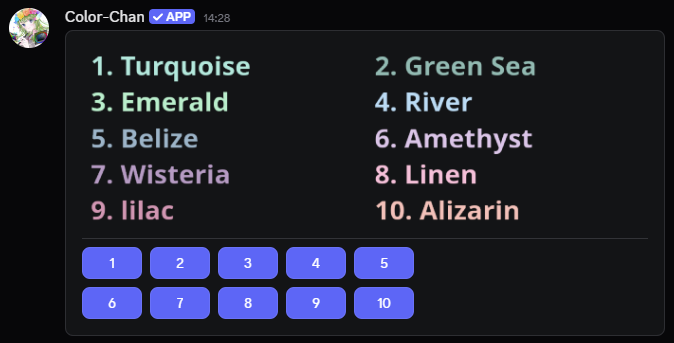
Example reaction list
Assigning color roles
Users can now assign their own color roles! They can do this by using the /set color command or by clicking on the buttons in a reaction color list.
When using the /set color command, users can either provide the name or number of the color they want to assign.